
Set up a weekly class with its schedule, location and prices. It takes about a minute, and you can change anything later.
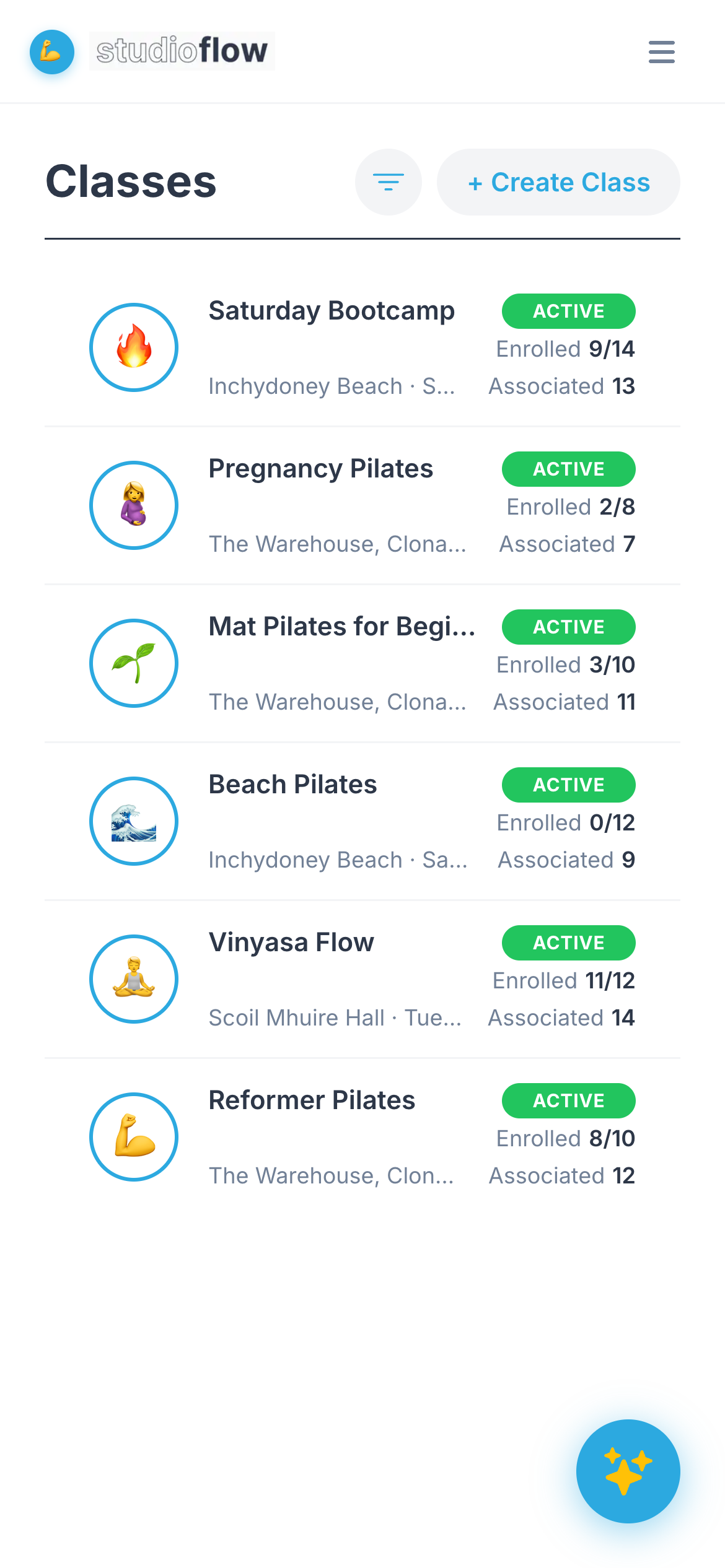
1. Open Classes
Open Classes from the menu and tap + Create Class.
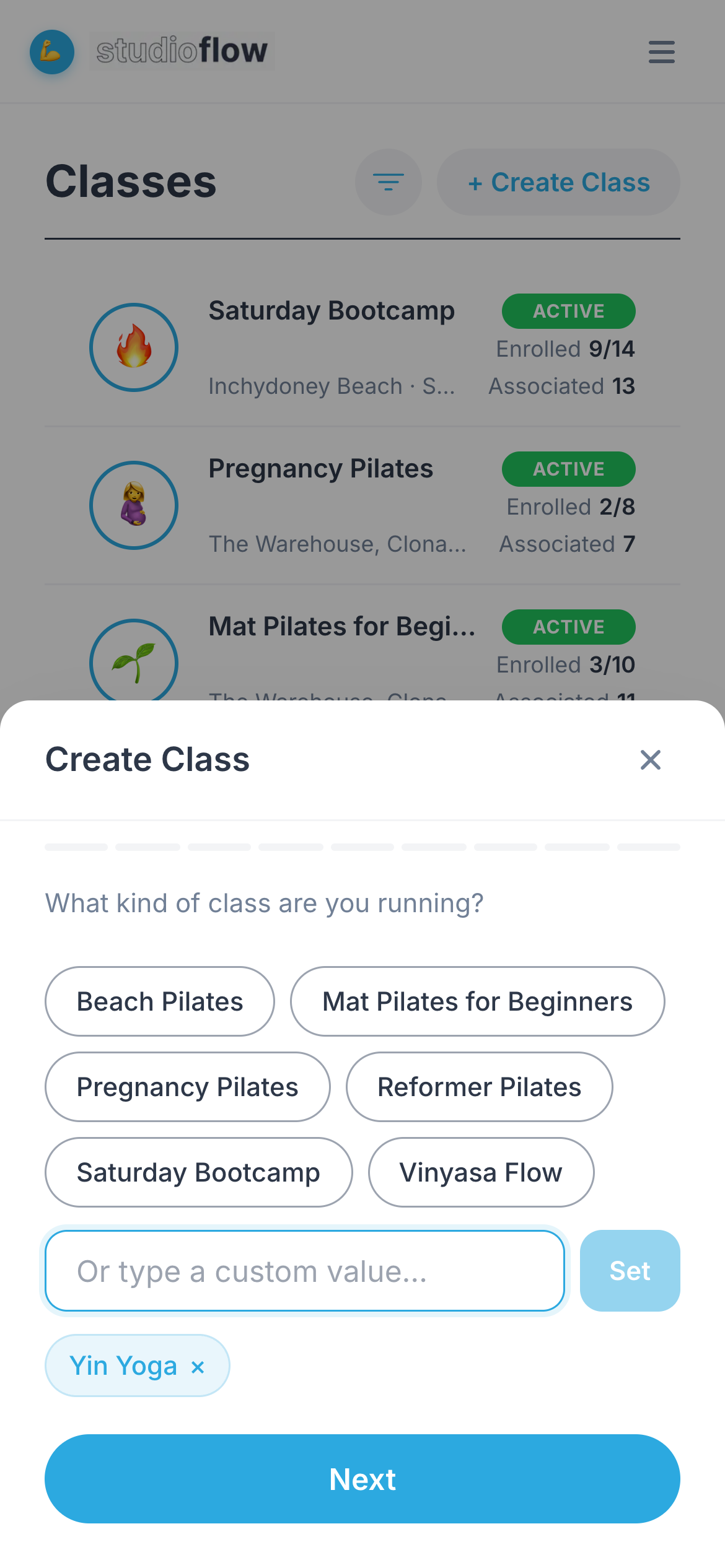
2. Choose the class type
Pick one of your class types, or type a new one and press Enter. Then tap Next.
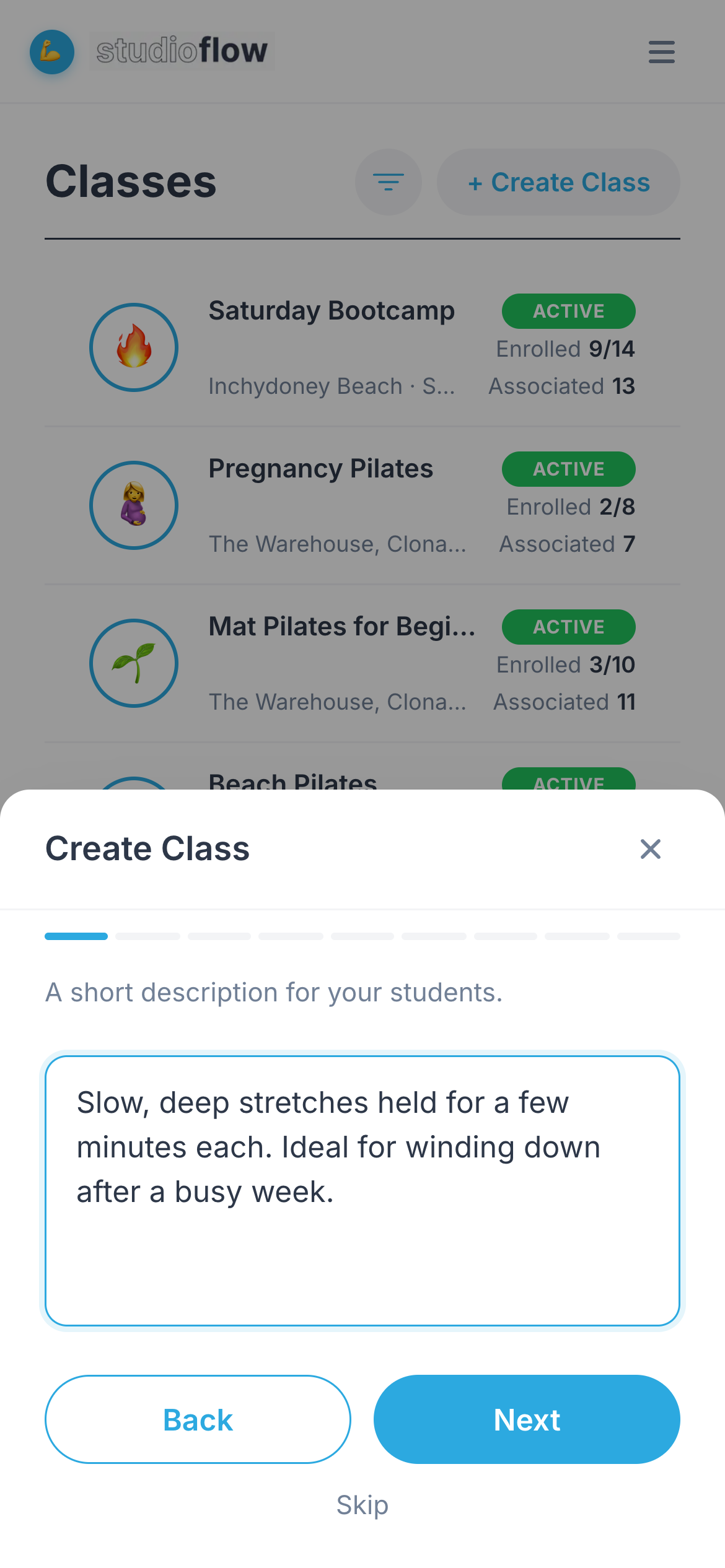
3. Add a description (optional)
A short description for your students, shown on your booking page. Tap Next, or Skip.
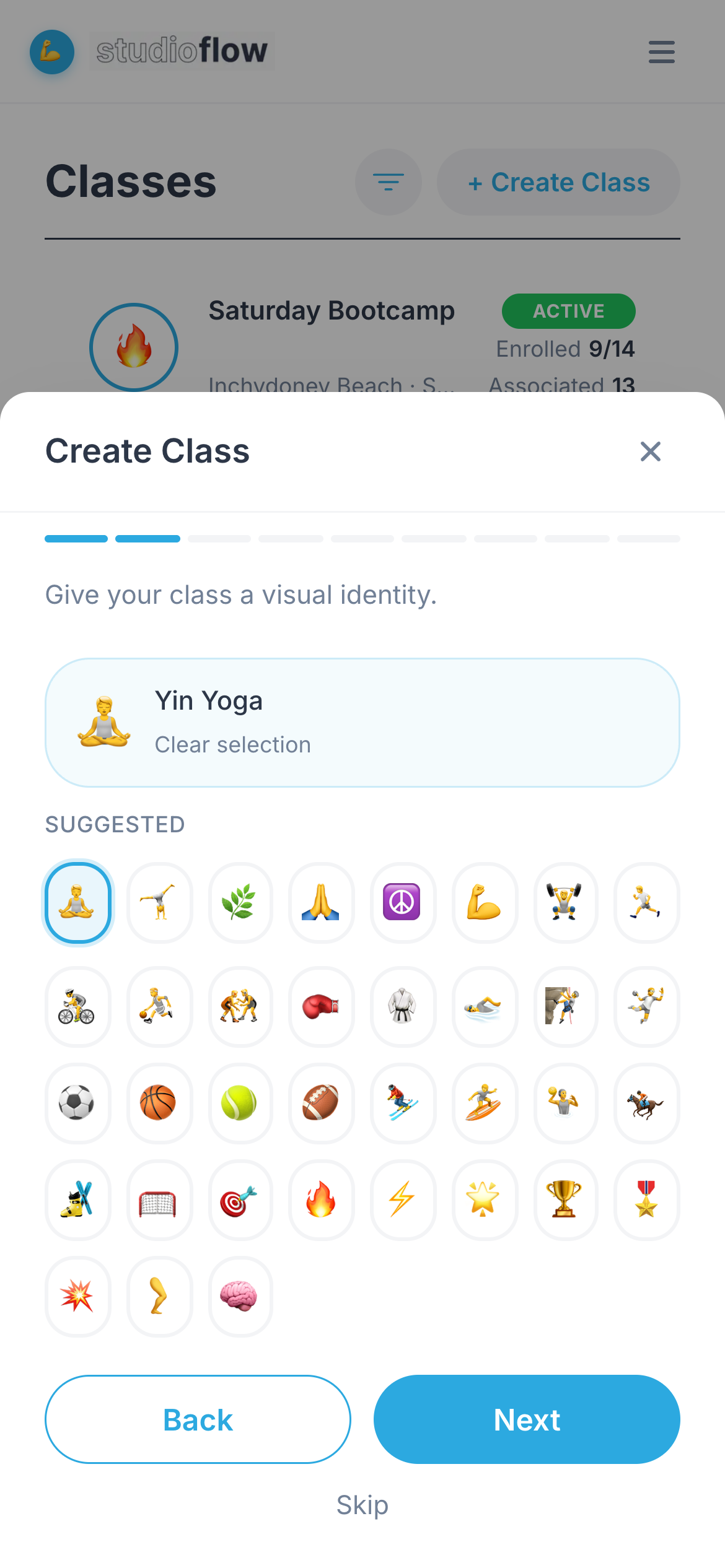
4. Pick an emoji (optional)
Choose an emoji so the class is easy to spot in your lists.
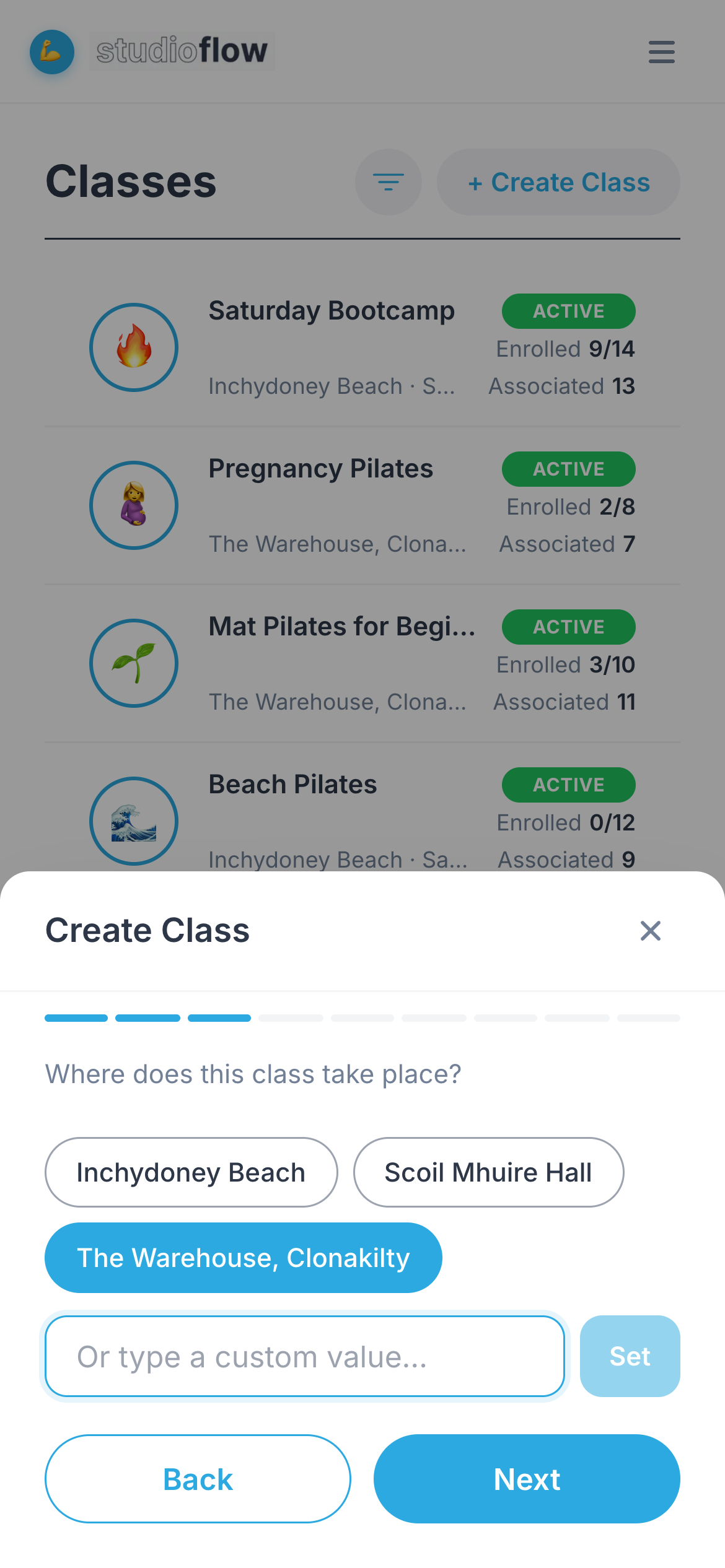
5. Set the location
Pick a location you've used before, or type a new one.
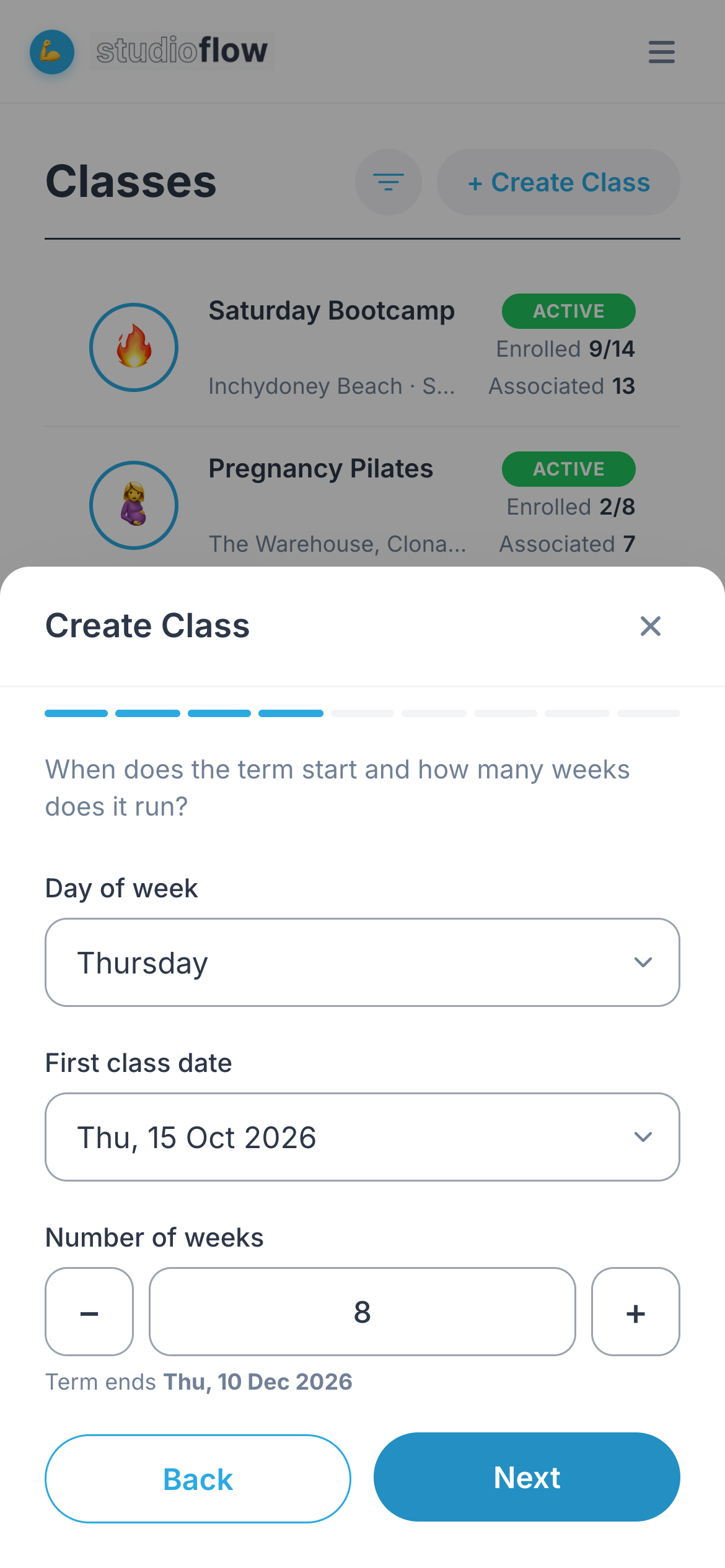
6. Set the schedule
Choose the day of the week, the date of the first class and how many weeks the term runs. studioflow shows you when the term ends.
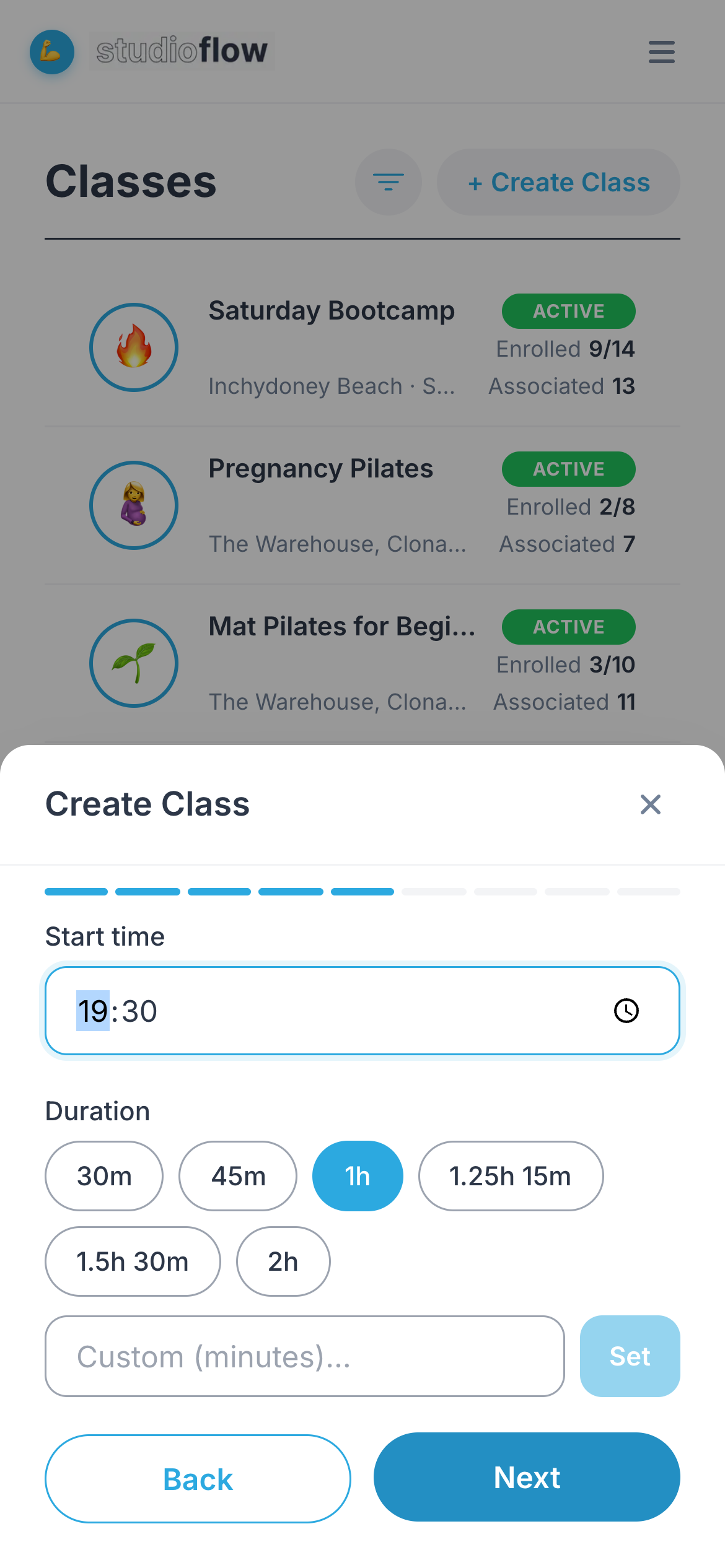
7. Set the time and length
Enter the start time and pick how long the class runs.
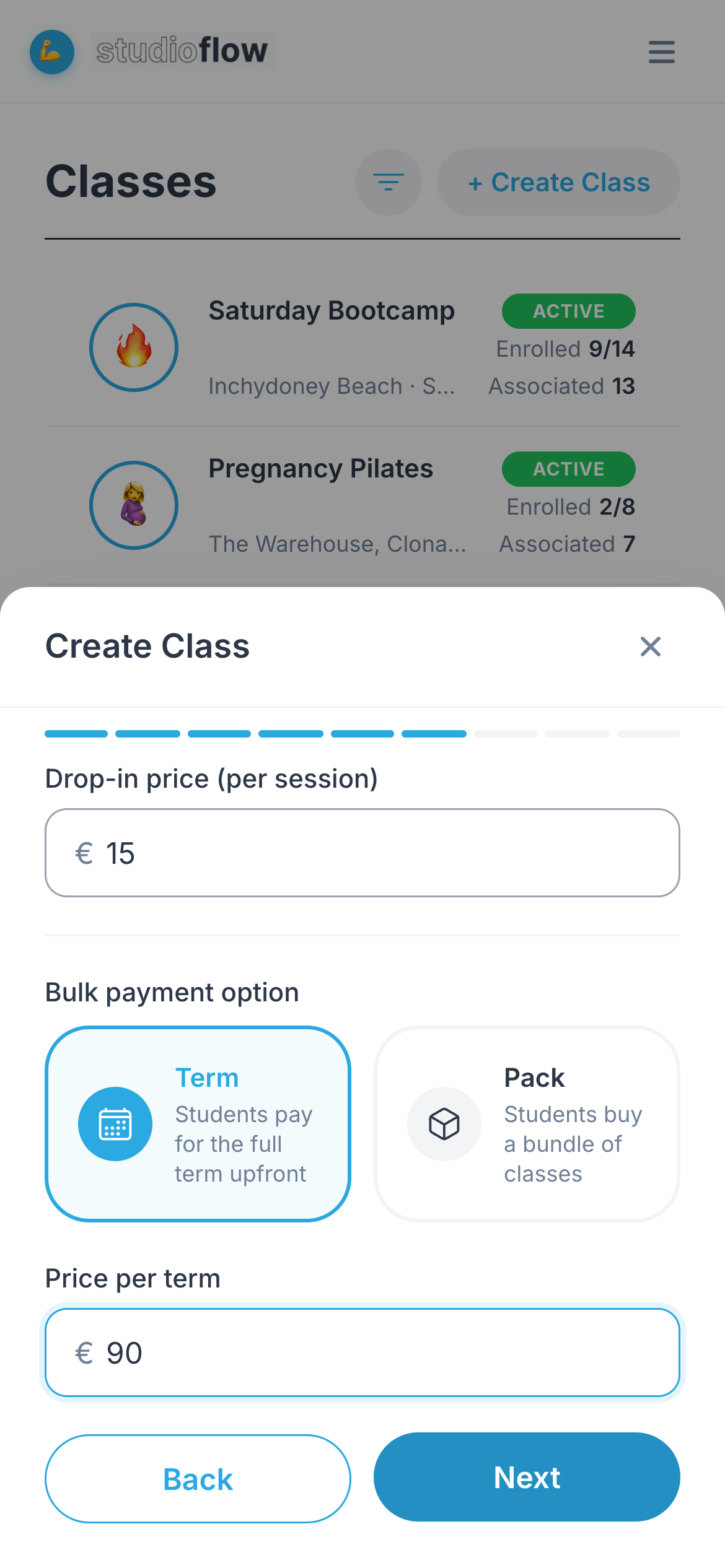
8. Set your prices
Enter a drop-in price for people paying class by class. Then choose how people can pay upfront:
- Term: students pay for the whole term in one go. Enter the price per term.
- Pack: students buy a bundle of classes.
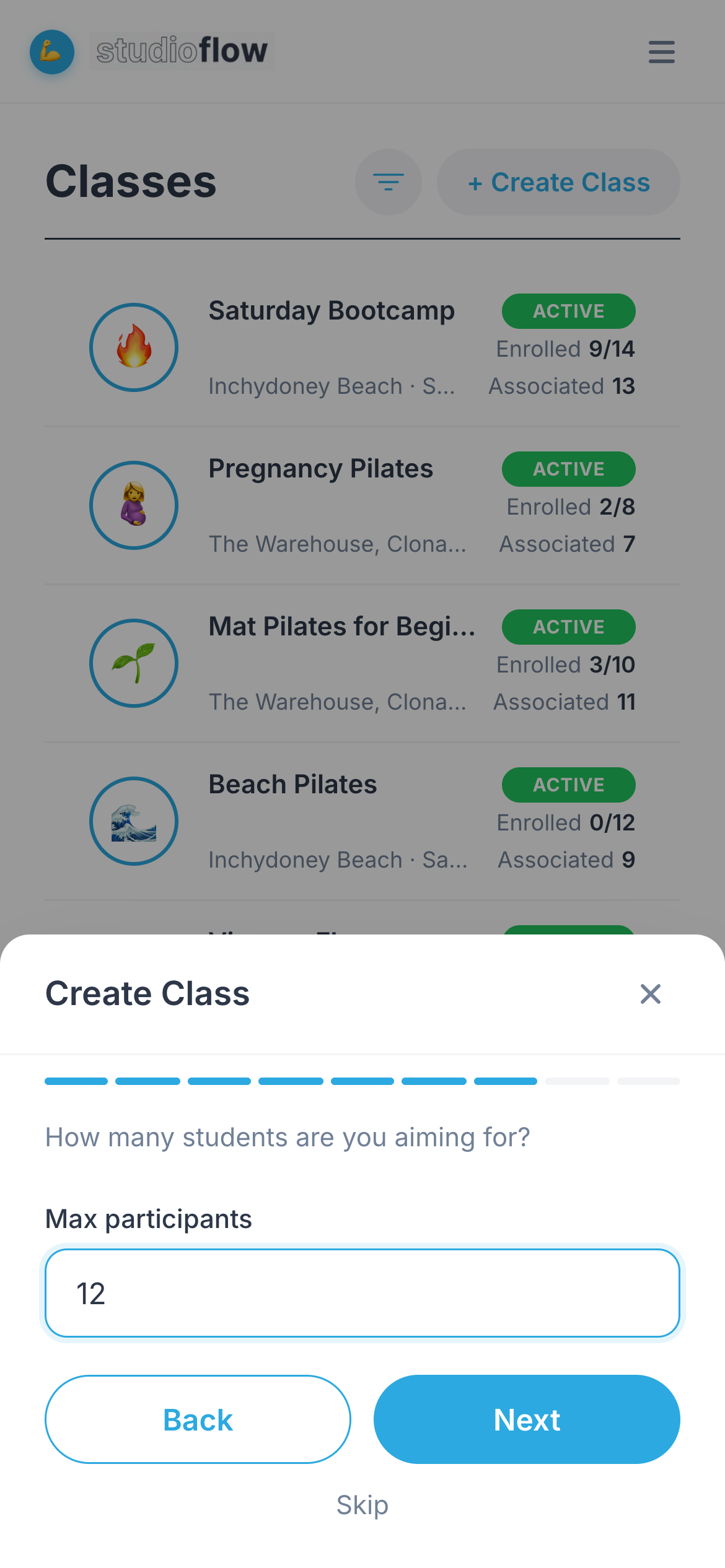
9. Set the number of places
Enter how many students you're aiming for. This is used to show how full the class is.
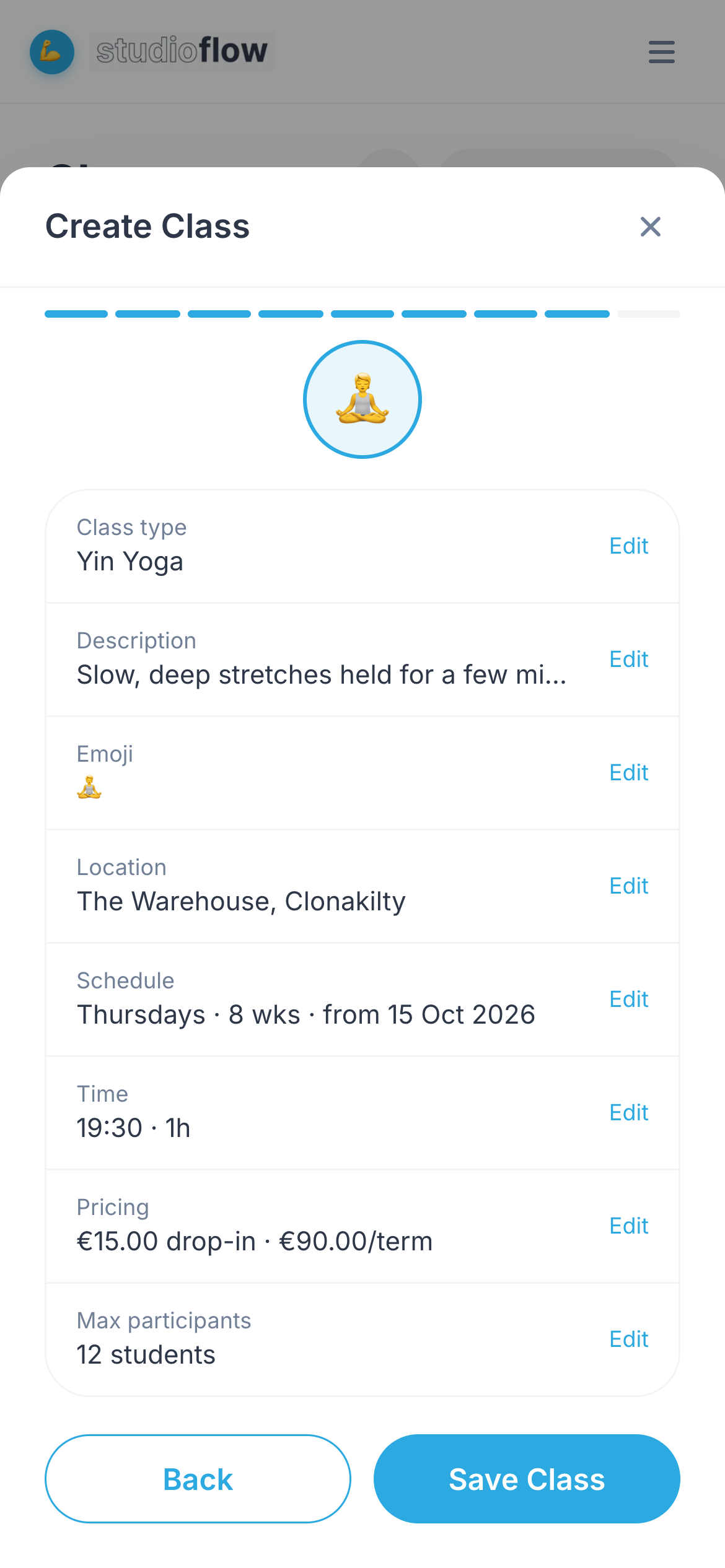
10. Check and save
Review everything. Tap Edit next to anything you want to change, then tap Save Class.
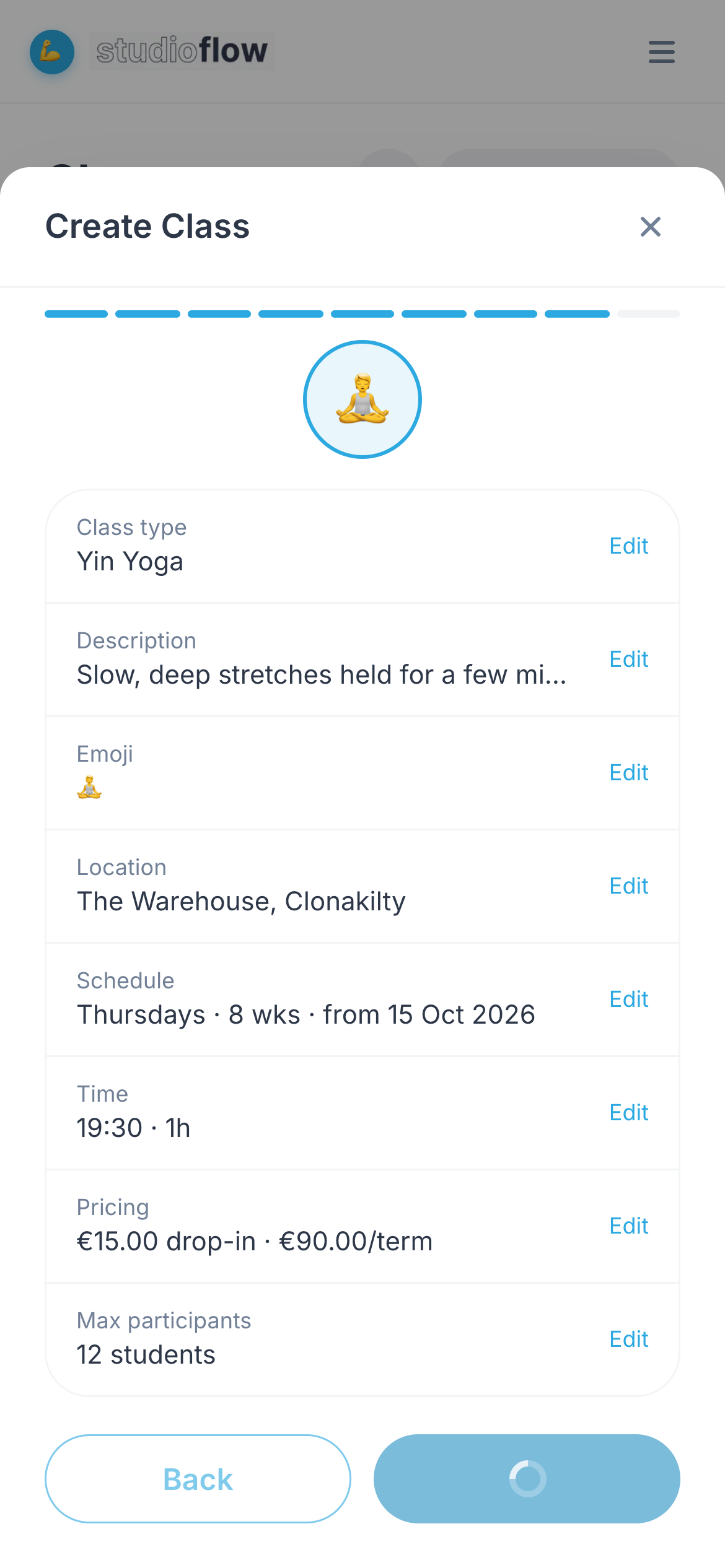
Your class now appears in your class list.
Next steps
- Share your class schedule so people can book