
Run your fitness business from Claude or ChatGPT
Connect StudioFlow to your AI assistant and just ask: who still owes for this term, make me a health questionnaire, move Thursday’s class to 7:30.
Last updated
What you can do in a chat
Ask about your business
Your schedule, bookings, attendance and who owes you money, answered from your real StudioFlow data.
Set up in a sentence
Create and change classes, build client forms and waivers, write message templates and update your profile.
It drafts, you send
Announcements, reminders and campaigns are saved as drafts. Nothing reaches your clients from the chat.
Nothing changes without your OK
Before it creates or changes anything, the assistant shows you exactly what it will do and waits for a yes.
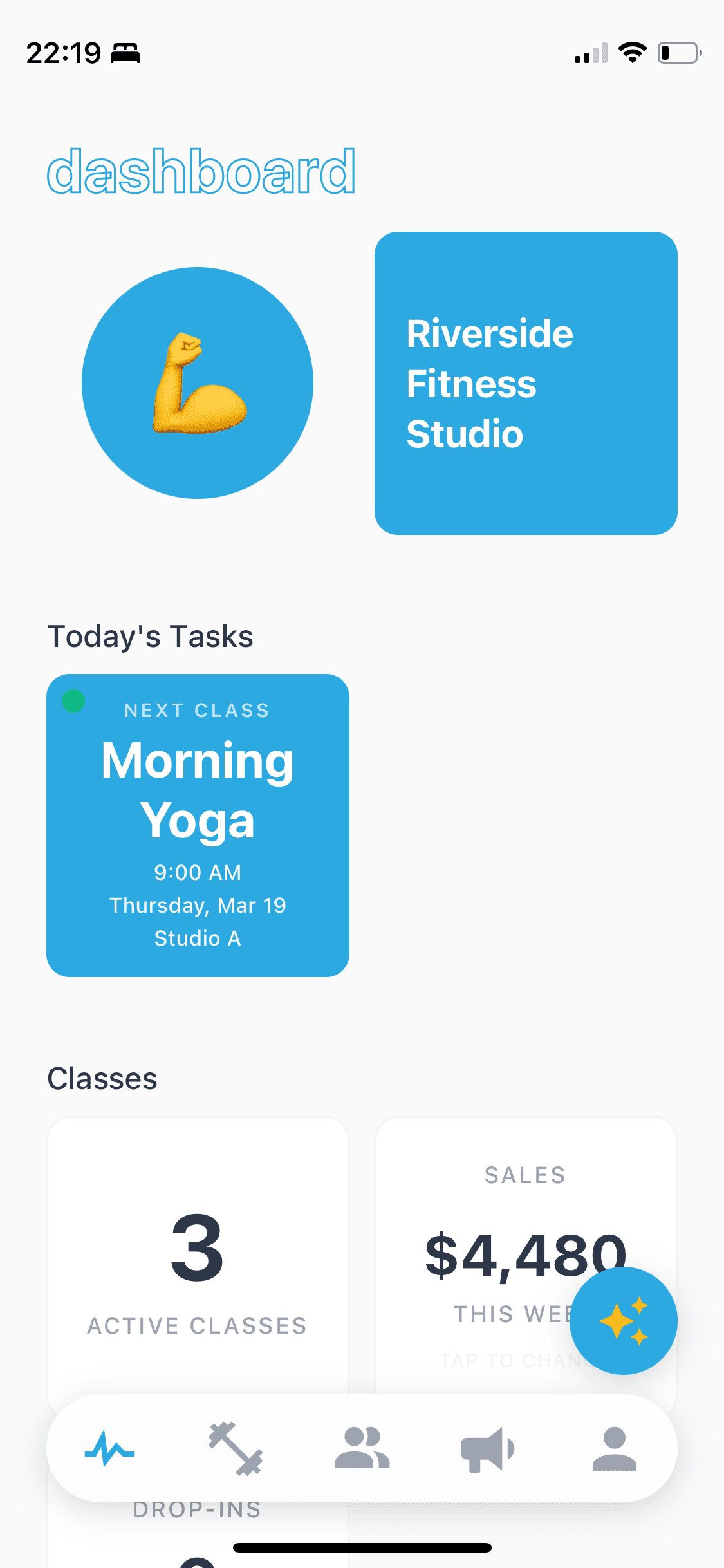
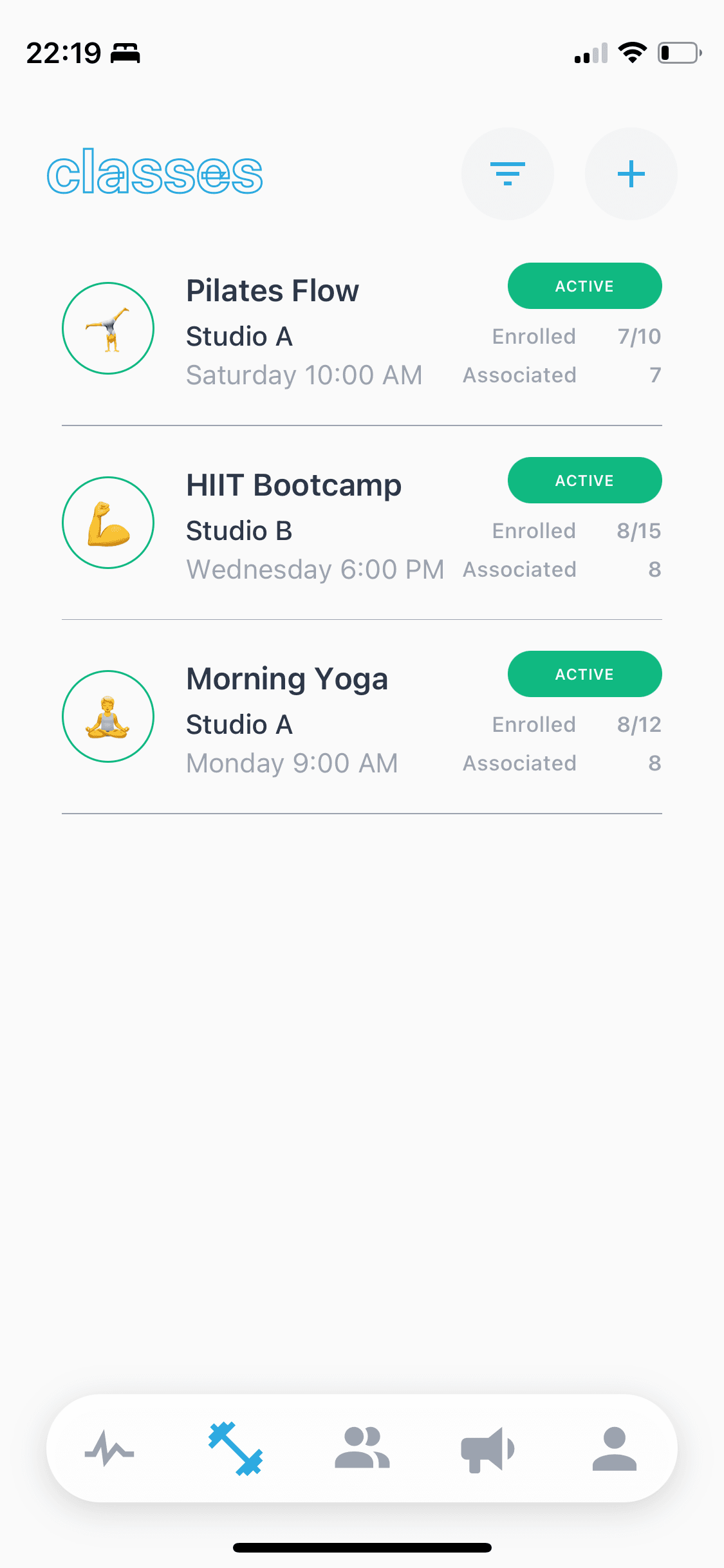
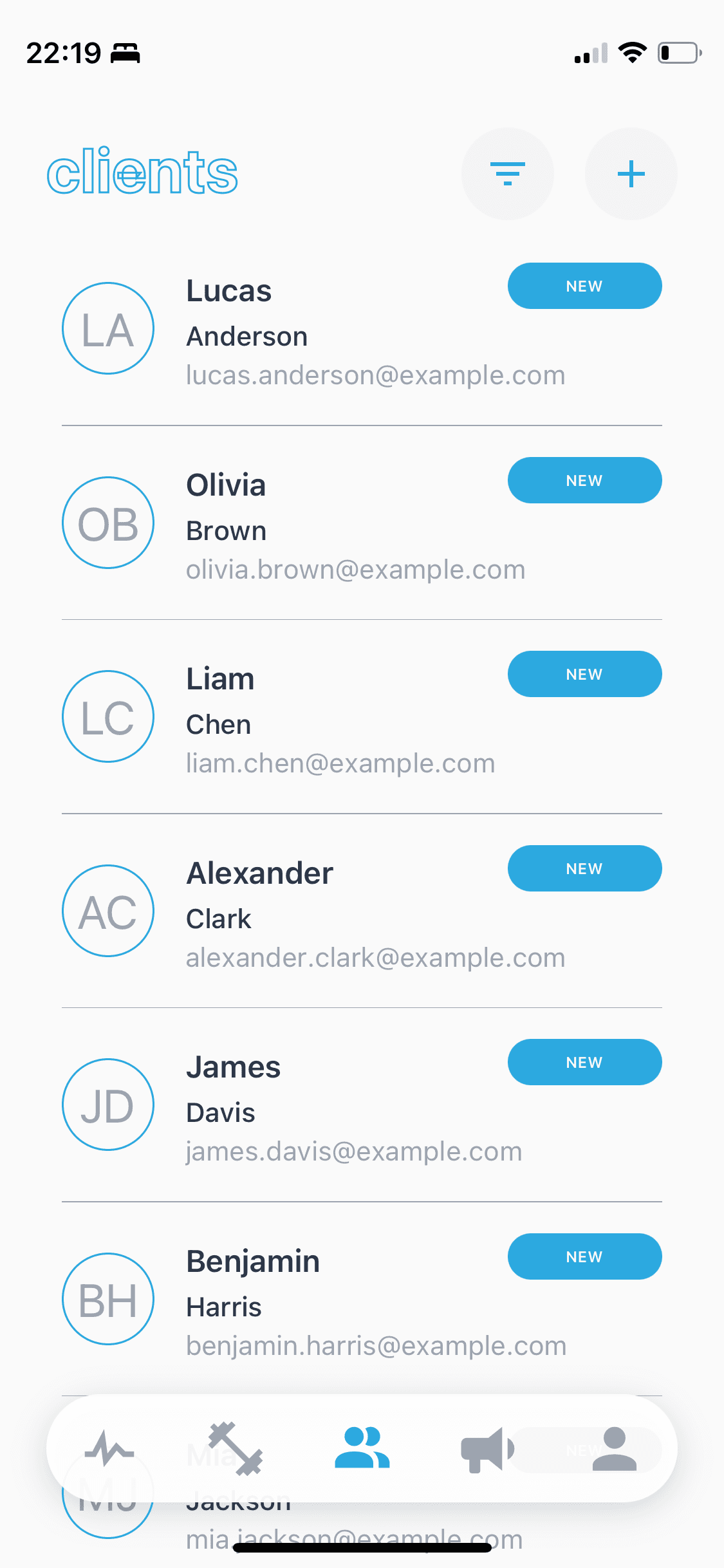
StudioFlow is in Claude’s connector directory and works with ChatGPT too. Once it’s connected, your assistant can see your classes, bookings and attendance, and do the set-up jobs that are fiddly on a phone, using the same account you log in to.
It’s the same StudioFlow underneath: the classes it creates, the forms it builds and the messages it drafts are all there in the app when you open it. Setting it up takes about a minute; the connection guide has every step.

Things to try
Your week
- “What’s my next class?”
- “How did this week go compared to last week?”
- “Which classes are filling up, and which need promoting?”
Money
- “Who still owes for this term?”
- “Draft a friendly payment reminder for everyone who owes.”
Setting up
- “Make me a health questionnaire and waiver for new clients.”
- “Set up a beginners yoga class on Thursdays at 7pm for 8 weeks.”
- “Move Thursday yoga to 7:30 and put the drop-in price up to €15.”
- “Help me rewrite my bio for my booking page.”
Messages
- “Write a welcome text I can send new clients.”
- “Draft an announcement that Saturday’s class is moving to the community hall.”
Connect in a minute
Claude: open Customize, then Connectors, browse for StudioFlow and click Connect. Log in with your StudioFlow email and password and approve access.
ChatGPT: add StudioFlow as a custom connector with the server address in our connection guide, then log in the same way.
Then start a new chat and ask “What’s my next class?”
Your clients’ data stays private
The assistant only works with your own StudioFlow account, and it never sees your password. It can see your classes, enrolment and attendance figures, your forms, templates and profile, and the names of clients who owe you money with the amounts. It never receives your clients’ contact details or their form and health answers.
It can’t send messages to your clients and it can’t delete anything. Your business name, phone, email and payment settings can only be changed in the app. More in our privacy policy.
Building your own app?
If you’ve asked Claude or ChatGPT to build you a booking page, client app or dashboard, StudioFlow can be the part underneath that’s hard to get right: bookings, payments, client forms and waivers, and SMS, email and WhatsApp messaging. Tell us what you’re building at our email.
Frequently asked questions
Which AI assistants work with StudioFlow?
Claude (web, desktop and mobile) through its connector directory, and ChatGPT as a custom connector. Any assistant that supports remote MCP servers with sign-in can connect the same way.
Does it cost extra?
No. Connecting your assistant and asking it questions is free. You only use credits for the same things as in the app, such as client sessions and the messages you send.
Can the assistant message my clients?
No. It saves announcements, reminders and campaigns as drafts in StudioFlow, and you review and send them yourself from the app.
Can it delete my classes or clients?
No. It can create and change classes, forms, message templates and your profile, always after showing you the change first, but it can’t delete anything.
Is my clients’ information shared with the AI?
Only what the assistant needs: class and attendance figures, and the names of clients who owe you money with the amounts. Contact details and form and health answers are never shared.
Do I need to be technical?
No. You connect it once by clicking through a sign-in screen, then just type what you want in plain English.